Team keys and Member keys
Two kinds of API key: a Member key spends the member's seat first, a Team key spends Team credits only. Who can create, see and change each.
Team keys are rolling out Team by Team. If you don't see the Owner choice when you create a key, contact us and we'll turn it on for your Team.
An API key has an owner. It is either a Member key or a Team key. You choose the owner when you create the key, and it cannot be changed afterwards.
| Member key | Team key | |
|---|---|---|
| Belongs to | The member who created it | The Team |
| Spends | The member's seat plan first, then Team credits | Team credits only, never a seat |
| Who creates it | Any member | Team admins only |
| Who changes it | Its owner | Team admins only |
| Who sees it | Its owner | Every member of the Team, read-only |
Use a Team key for a service or a pipeline that should not depend on one person: it keeps working when that person leaves, and it never draws on someone's seat. Use a Member key for your own tools, as before.
Create a Team key#
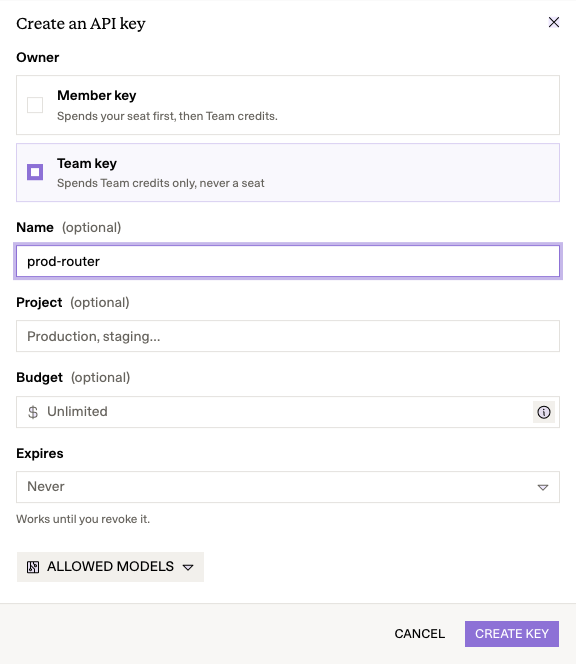
Open API keys and choose Create key. Admins see an Owner choice:
- Member key: spends your seat first, then Team credits.
- Team key: spends Team credits only, never a seat.
Members see the same choice, but Team key is greyed out with the note Admins only.
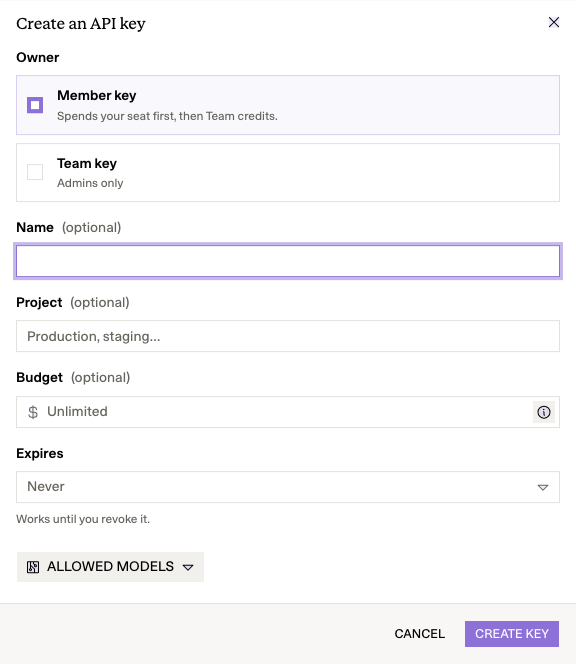
Name the key and, if you want, give it a limit. A Team key's limit is a ceiling on what that one key may spend, and it must be a positive number. Then create it.
The secret is shown once, to the person who created the key. Copy it then: we do not show it again. We store who created each Team key.
A Team key cannot be created while the Team has no credits. Add credits on the billing page first.
See Team keys#
The keys table has a Type column that says Team or Member. A Team key also shows Created by and the creator's name.
As an admin, you see every Team key and can edit it.
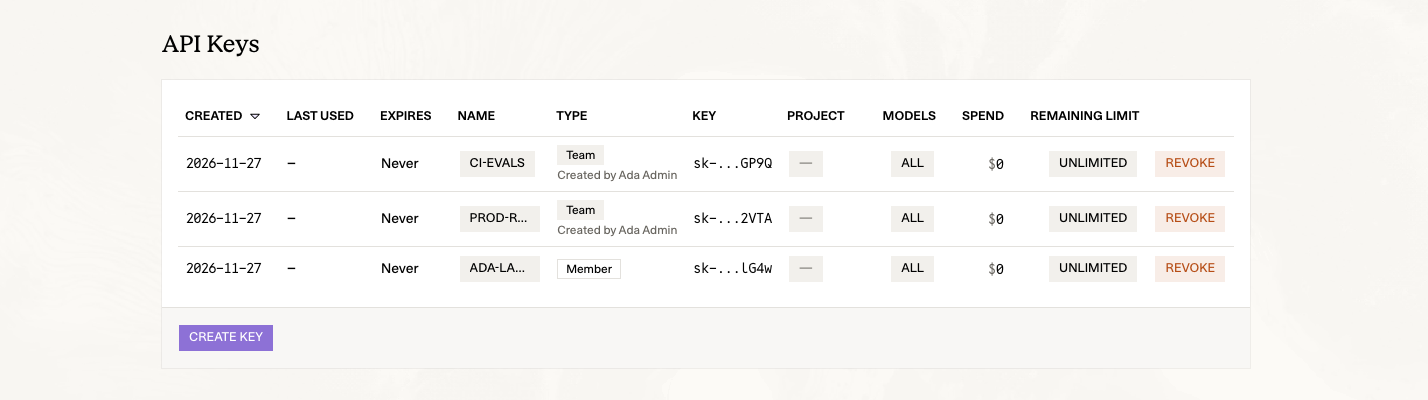
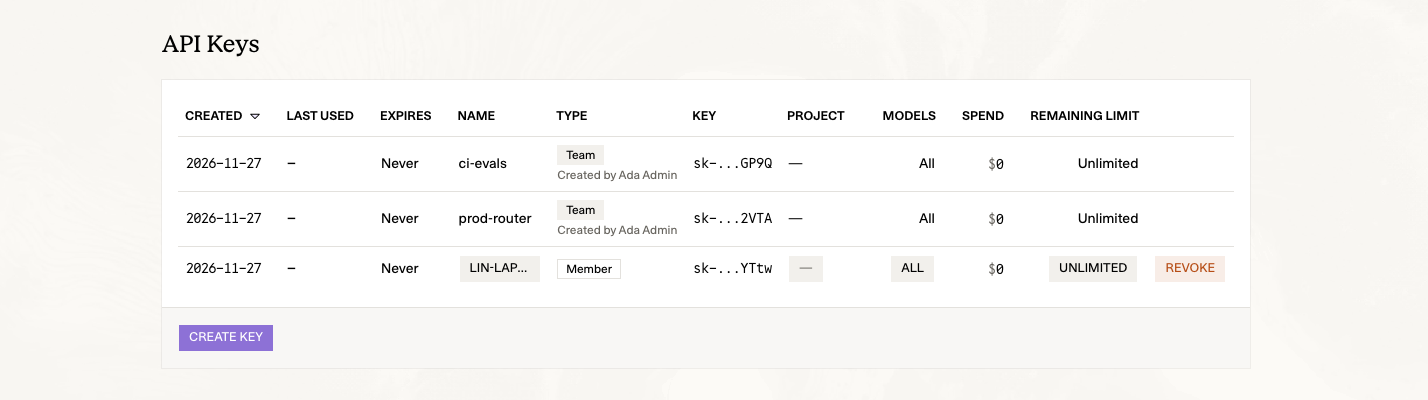
As a member, you see every Team key and its usage, but you cannot change it. The edit controls are not shown for Team keys. Your own Member keys stay editable. Other members' Member keys are not listed.
Change or revoke a Team key#
Only Team admins can change a Team key's name, project, models or limit, and only Team admins can revoke it. Expiry is set at creation and cannot be changed. Member keys stay with their owner.
You cannot change who owns a key. To move a key to another owner, create a new key with the right owner and revoke the old one.
When Team credits reach zero#
A Team key stops when the Team's credits reach zero. Its requests return HTTP 402 with code member_credits_exhausted and the message "This Team key spends your Team's credits, which are empty - a Team admin can add credits". If an admin set a limit on the key and the key reaches that limit first, the code is key_budget_exhausted instead. The block follows within about a minute of the credits reaching zero, so a few requests may still go through first. Adding credits lifts it. See Errors.
Members with a seat and plan left keep working: their Member keys spend the seat first. Only Team keys stop.
When the creator leaves the Team#
A Team key keeps working when the member who created it is removed from the Team. The remove-member dialog tells the admin how many Team keys that member created. Revoke them if the member should lose access.
The keys table shows a former member as the creator of such a key.
Revoking a Team key#
Revoking a Team key deletes it. Its past spend moves to Unattributed keys on the usage page. The spend stays on the Team's bill; it just no longer has a key name.
Availability#
Team keys are being offered to a few Teams first. If your Team has them, the keys table shows the Type column and admins see the Owner choice. Without them, every key is a Member key.